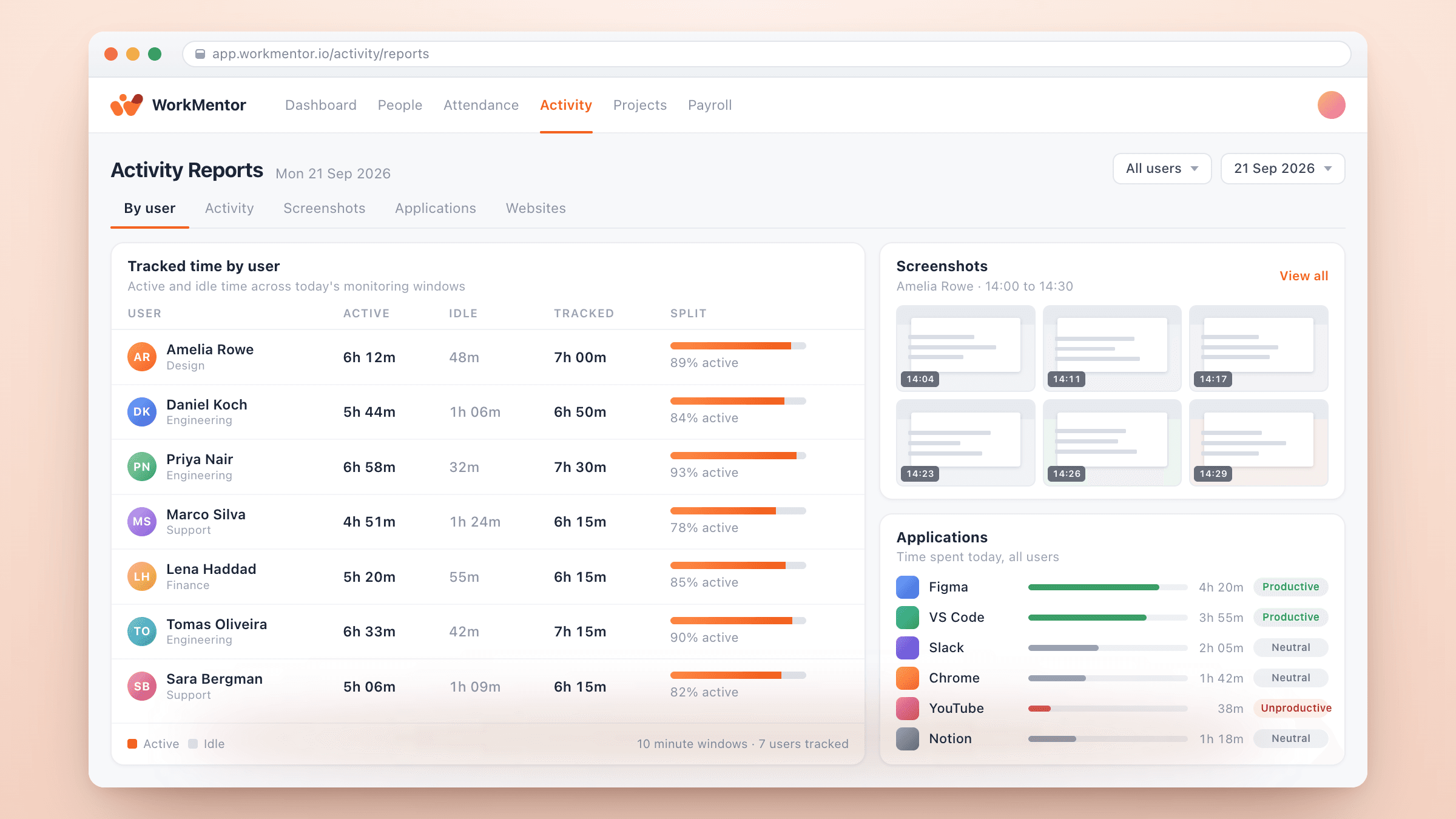
WorkMentor tracks activity from a desktop app the employee installs and signs
in to, so people can see that tracking is running and when it started. Tracking
begins at check-in and stops at check-out. The day is divided into fixed
monitoring windows, and each window holds active time, idle time, keyboard and
mouse counts, the applications and websites in use, and the screenshots taken
in that window.
Admins control what is captured. Screenshots, keyboard and mouse counts,
application tracking, website tracking, and location can each be switched on or
off for the whole organization or for one user, and every capture is off until
the desktop app has read those settings. Idle time, window length, screenshots
per window, and the input rates that count as full activity are all configured
in the same place.
The result reaches the web app as activity reports: totals per user, window by
window detail, a screenshot gallery, and application and website usage that you
can classify as productive, unproductive, or neutral. Because the desktop app
tracks time against the same timesheet tasks and the same attendance day,
activity data sits next to the work it belongs to instead of in a separate tool.
Desktop app for macOS and Windows that tracks from check-in to check-out, and keeps recording through sleep, lock, and network loss
02
Fixed monitoring windows with active time, idle time, keyboard and mouse counts, and screenshots
03
Application and website usage per user, with productive, unproductive, or neutral classification
04
Organization and per-user settings for screenshots, input counts, applications, websites, location, and idle rules
05
Activity reports by user, by window, by application, and by website, with screenshot gallery and date range filters
06
Idle time an employee can assign to a timesheet task, when the admin allows it
What changes
More control, with less reconstruction.
These connected results show how activity and time tracking carries useful context from the first action through the wider operating workflow.
01Connected result
Time you can explain
Every tracked hour keeps its windows, applications, websites, and screenshots, so a timesheet entry can be reviewed with the context behind it.
02Connected result
Tracking the team can see
Employees install and sign in to the desktop app, tracking runs between check-in and check-out, and the settings that decide what is captured are visible to the people who manage them.
03Connected result
One record for time and attendance
Activity, timesheet tasks, and the attendance day stay connected, so reviewing hours does not mean comparing three separate tools.
Time tracking for agencies is the practice of recording every hour your team spends on client and internal work, marking each hour as billable or non-billable, and tying it to a client, project and task.
Connected in WorkMentor
Built to move with the rest of WorkMentor.
The same people and work records continue into these connected product areas, so each handoff keeps the context your team already created.